Linux

Enabling Hibernation on Linux Laptops

Enabling Hibernation on Linux Laptops

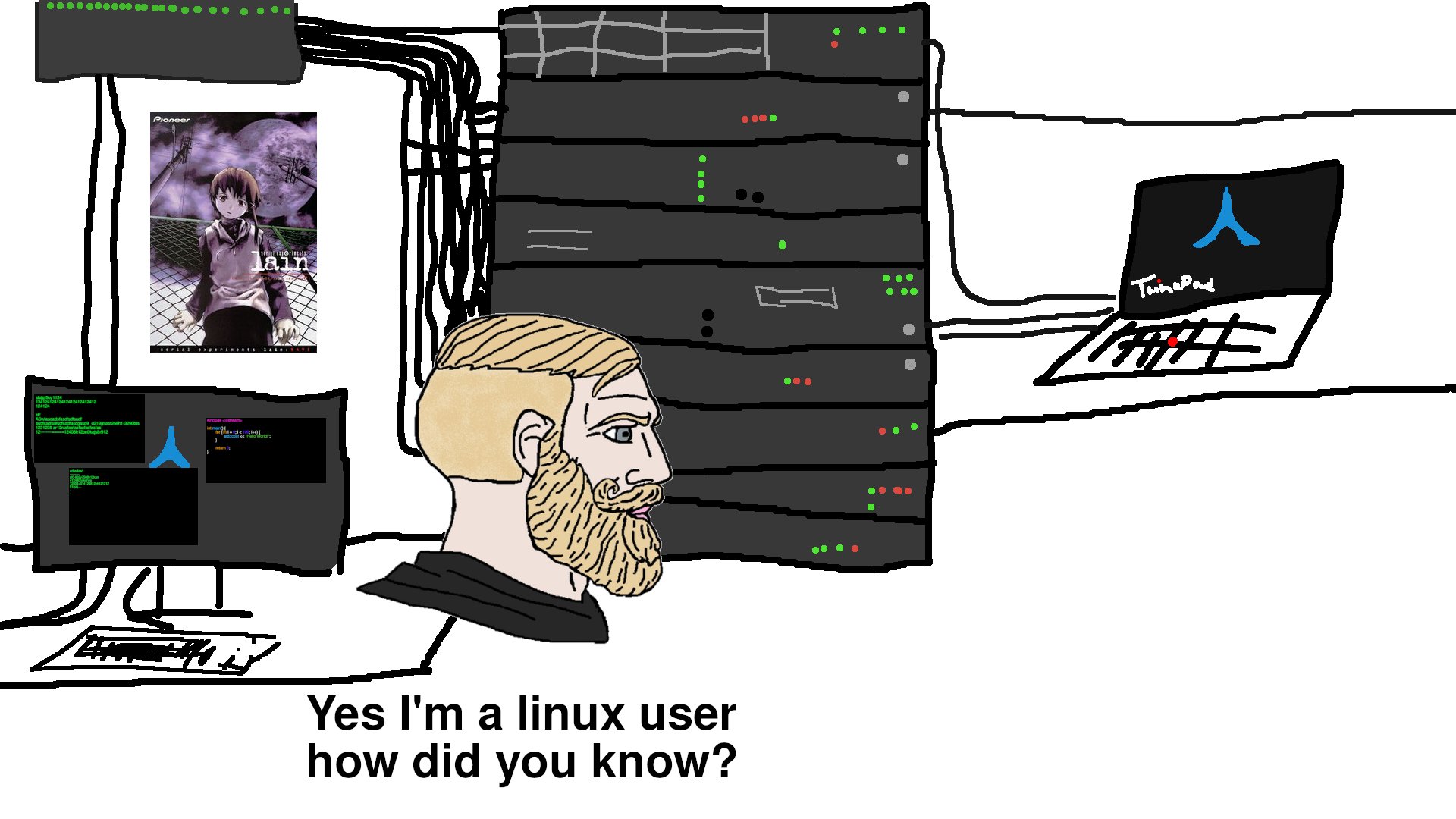
use a gimped picture of flapjack with my wretchedghost logo as flapjack and several other thinks like laptop brands as the whale and the other dude

After purchasing yet another second-hand laptop i have run several hurdles to get them Linux worthy and even that seemed to hard for some.

Why I do this to myself

Even when I have a setup that I enjoy my mind always wanders to what if there is something better. I would like my current laptop to be this or that, or I want a laptop to run for days without charging but also be super light and well, the list goes on.

Enabling Hibernation on Linux Laptops

Enabling Hibernation on Linux Laptops

Due to issues with the latest sleep states in laptops I’ve had to resort using hibernation or S4 as the strata for all my Linux laptops:

  1. Lenovo X1 Carbon Gen 8 (intel 10th gen CPU)
  2. HP Gram 17z90n (intel )
  3. Dell XPS 9315 13 i5

My older laptops like the System 76 Darter Pro before they moved to CoreBoot systems and Dell XPS 9380 still functions quite well in S3 state, not requiring hibernation.

HIC SUNT LOCALHOST

HIC SUNT LOCALHOST

Article: PSA be aware of the difference between localhost and 127.0.0.1

here be dragons map

I was bit in the butt by a bug that sprung up at me over the weekend. It really wasn’t a bug but I think it should be. I explain more down below. Over the weekend I setup a new VPS with Linode where its only job was to be my central always-running syncthing server in the cloud. Upon first setting it up was able to reverse SSH tunnel to it using my standard SSH config and keys using this command. (hic sunt localhost is a play on words from the old Hunt-Lenox-Globe which coined the phrase “Here be dragons” or “hic sunt dracones” in Latin.)

That's What I Sed

That's What I Sed

sed (Stream EDitor) is a super simple program that can be used to replace text for another in a file. Let’s first view the contents of a file I made called greetings.txt with cat.

Command Line Navigation Tips and Obscure Shortcuts

Command Line Navigation Tips and Obscure Shortcuts

If you’re spending any amount of time in the terminal, learning shortcuts can potentially save you hours in the future. Most people know the arrow keys and backspace, but bash has decades of shortcuts built in that almost nobody uses.

I’ve been using Linux since 2011, and I’m still discovering new ones. Here are the ones I actually use daily, plus some obscure gems.

Exanding ZFS Root Parition on a Live System

Exanding ZFS Root Parition on a Live System

My server, cprox, as I call it, was set up with only 64GB of storage on the root partition. I don’t know what I was thinking at the time, but this caused issues only a week after setting up the new server.

Within this time, the OS, packages, and other things Proxmox does, consumed 86% of the drive. This made things run slowly and caused the command line to freeze sometimes, which was very weird since the OS was on mirrored SSDs - which is exactly what allowed me to do this resizing live.

I Love Ranger

I Love Ranger

My ranger config can be found here

ranger program linux

Here is a quick write up of a program that I have heard of before and installed but never found it necessary in my work flow. I have and still am happy to move around in the command line like I have been for the past ten years plus but now after finding a good reason to try it out this time since I have been moving around a lot more in the command line from writing blogs to notes to novels, and everything in between, I felt like my work flow wasn’t as optimized nor as speedy as it could be.

Vim Plugins Setup

Vim Plugins Setup

Why Use Vim Plugins?

In the Vim Basics series, we covered vanilla vim and how powerful it is right out of the box. And honestly, vanilla vim can handle 90% of your daily work as a sysadmin. But sometimes you want that extra 10% - better syntax highlighting, file navigation, or quality of life improvements that make your workflow even smoother.

The key is not to go overboard. I’ve seen people install 30+ plugins and end up with a slow, bloated vim that defeats the purpose of using a lightweight editor in the first place. As a system admin who jumps between servers constantly, I keep my plugin setup minimal and portable.

Vim Basics: Part 3

Vim Basics: Part 3

Building on the Basics

Now that we know how to open a file, edit it, move around in it, and save it, let us now look into how we can tweak it. My post to part 1 of vim basics can be found here: https://blog.lanlocked.xyz/post/vim-basics-part-1/. Part 2 can be found here: https://blog.lanlocked.xyz/post/vim-basics-part-2.

In this part, we’ll cover visual mode, text objects (which will change how you think about editing), and then dive into customizing vim with your .vimrc configuration file.

Vim Basics: Part 2

Vim Basics: Part 2

Welcome Back

In Part 1, we covered the basics of opening vim, understanding normal and insert modes, and moving around with the hjkl keys. If you haven’t read that yet, I’d recommend starting there as we’ll build on those concepts.

Now it’s time to tackle what might be the most infamous aspect of vim: how to actually save and exit the program. We’ll also dive into some useful editing commands that will start to show you why vim users are so passionate about this editor.

Vim Basics: Part 1

Vim Basics: Part 1

Getting to know vim

If you are looking for a way to get more efficient at editing configs and text then vim is what you are wanting. Even at its most basic interface with no added plugins, vim can help you manipulate a file with its efficient modes and commands.

vim is not the easiest to learn, especially for beginners where often newbies trying it out for the first time find they are not even able to exit the program. But, after some little quirks have been understood, you may soon ask yourself how you lived without it.

How to Remove the DRM on Amazon Audible Files - Updated

How to Remove the DRM on Amazon Audible Files - Updated

Editor’s Note: When I first published this article, the https://audible-converter.ml/ shortcut method still worked. As of August 2023, that site is down. The method below using RainbowCrack still works perfectly.

Why You Should Care

As Amazon continues to expand their collection of books, music, and audiobooks, licensing disputes with publishers and authors will continue to cause problems. What this means for us as users is that we could lose access to media we purchased on Amazon’s platform. This has happened before and will happen again when you least expect it.

How to Remove the DRM on Amazon Audible Files - Updated

How to Remove the DRM on Amazon Audible Files - Updated

Editor’s Note: When I first published this article, the https://audible-converter.ml/ shortcut method still worked. As of August 2023, that site is down. The method below using RainbowCrack still works perfectly.

Why You Should Care

As Amazon continues to expand their collection of books, music, and audiobooks, licensing disputes with publishers and authors will continue to cause problems. What this means for us as users is that we could lose access to media we purchased on Amazon’s platform. This has happened before and will happen again when you least expect it.

Giving New Life to a Chromebook

Giving New Life to a Chromebook

I am the new owner of a hand-me-down Chromebook that to me, now has a new reason to exist. No longer is it tied to Google and their tracking and ads policies. Rather it is its own system now, complete with Arch Linux/EndeavourOS on i3-wm.

I first purchased this laptop for my oldest child who required something for online school during the Covids and I landed on the Lenovo S340-14. Inside it has a Celeron N4000 dual core/dual hyperthread CPU, 4GB of RAM, 64GB of storage, and a 14 inch TN screen at 1920x1080 and 220 nits. It worked fine for her during that time but now that its basically a paperweight now that she has my System76 i7 Dart Pro gen 1 laptop ((I need to make a review on about it one day) which was before they stared using coreboot and is 15.6" rather than either 14" or 16" they have now, but that is a story for another day).

Running Asahi Linux on my Macbook Air M1

Running Asahi Linux on my Macbook Air M1

A descriptive caption

Even though this device is not meant to be running Linux, I’m going to be tough during this review.

Setup process

It’s extremely easy. Enter in the script, read what its outputting, click a few keys, voila, you have a running Asahi Linux system that dual-boots with MacOS. Ok, its not as simple as that but one through ten where 10 is installing Gentoo its like a two. The only gotchas that occur are when you don’t read the final output and your system goes into an infinite boot loop which is remedied by simply resetting and holding the power button until it tells you it is booting into config mode.

The Reasons I Keep Going Back to MikroTik

The Reasons I Keep Going Back to MikroTik

I have been using MikroTik (my-crow-tick or me-crow-teek), or however you want to pronounce it, for several years now and I just keep coming back to using it. MikroTik, for the uninitiated, can be quite a difficult system to learn and use. There are quite a bit of gotchas that can bite you along the way and even now, some things can still trip me up if I’m not paying attention to what I’m doing. Read below under Final Thoughts for the great benefits that I have found from using MikroTik and for those TLDR enthusiasts.

Data Hoarding in an RV - Updated

Data Hoarding in an RV - Updated

In my previous article of https://blog.lanlocked.xyz/data-hoarding-in-an-rv/, I documented how I was using a Synology DS1520+ as my NAS. After fighting with it and the main array of weird issues Synology desires to implement, which I won’t get into here, I have recently sold the setup and gone with a much more robust system, or systems, in my RV.

I have built three new server systems, but first lets start with what hardware I am currently running.

How to Upgrade Gitea

How to Upgrade Gitea

Updating gitea is a simple as replacing the binary in /usr/local/bin/gitea.

  1. Stop the gitea service

$ sudo systemctl stop gitea

  1. Move the current binary from gitea to gitea.old just in case things break.

$ sudo mv /usr/local/bin/gitea /usr/local/bin/gitea.old

  1. Use wget to get the the current version: example -> https://github.com/go-gitea/gitea/releases/download/v1.20.2/gitea-1.20.2-linux-amd64. This is not the latest version, this is just an example.

cd ~/Downloads && wget https://github.com/go-gitea/gitea/releases/download/v1.20.2/gitea-1.20.2-linux-amd64

  1. Change the name of the file from gitean-x.x.x-linux-amd to gitea

$ mv gitea-x.x.x-linux-amd gitea

How to Sync AntennaPod with Nextcloud | Part 2

How to Sync AntennaPod with Nextcloud | Part 2

I have basically gone this whole entire setup just to get synchronization on AntennaPod and my phone/devices. Is it worth it? Not really as you can do the same with exporting the backup the official AntennaPod to another phone or use an OPML file to do the same for other podcast clients, but its a fun project.

Now that we have Nextcloud up and running now we can install the GPodder Sync app.

How to Sync AntennaPod with Nextcloud | Part 1

How to Sync AntennaPod with Nextcloud | Part 1

After much research and trial and error I have found the gpodder implementation to be very terrible. The only known way to get synchronization across devices is to setup a Nextcloud server and install the plugin/addin gpodder. The other ways that I have tested but could not get any to work due to broken links and or not enough information are with micro-gpodder-server and gpodder2go. Both failed miserably.

The official link/website and how-to from gpodder.net called mygpodder has a broken link and requires various weird ways to get it to work using sqlite3, cargo, npm, etc. The cargo program is run in .exe making me think they have this running on windows and not on Linux.

Using Perl-Rename For File Substitution

Using Perl-Rename For File Substitution

I tried to use sed to rename filenames but found it rather cumbersome. sed is great when used to edit the content of a file which you can find some examples I created here, but I found this handy program that can do the same but for filenames instead.

Installed on my Arch, BTW, system I already had the program called rename which is not the same as the one we need called perl-rename. To install it I just ran it using pacman -S perl-rename. From here I was then able to rename a whole ton of files that I had scraped from the internet, cough cough youtube, quite easily.

Two-Factor Auth and/or Passwordless Login on Arch Linux Using u2f Physical Keys

Two-Factor Auth and/or Passwordless Login on Arch Linux Using u2f Physical Keys

Credit Where Credit Is Due

I used a lot of https://old.jamesthebard.net/archlinux-and-u2f-login/ config but then tweaked it and added a litle more explination as his entry was from 2017~.

Let’s Start the Rant

I have always wanted a way to get away from always having to type in password to login or use sudo. There are security concerns by allowing this type of login, one is the fact that anyone who possesses my key could then login and run as sudo, also is the factor that with some tweaking you can make it only allow for key entry via u2f :lock:. A third way, which is the most secure way, is to have it where you must type in the password and possess the u2f hardware key to login.

Vim Substitution

Vim Substitution

vim logo

vim substitution is one tool any advanced vim user should know. Basically, vim substitution is similar to search and replace used on other file editors but vim goes much further than just searching and replacing files and characters. For anyone who creates bash scripts and edits a ton of config files like myself, will attest to the need to comment and uncomment many lines at a time.

I’ll start with the basic uses of substitution and go into the more meaty commands as we go along.

Auto Screen Lock With Suspend and Resume in i3 With Systemd

Auto Screen Lock With Suspend and Resume in i3 With Systemd

After using i3-wm, formally known as i3-gaps, for several years on my personal workstation I have not really needed to use the i3lock features that often due to my workstation being in my office where no one else touches it. right They wouldn’t know how to use it in they did try and mess with my workstation. But now that I am using my same i3 config across more systems including my work computer where I now use it manage and maintain the network and servers of my work, I began looking for ways to make my computer more secure. 

Data Hoarding in an RV

Data Hoarding in an RV

I like to data hoard but I don’t take it the extreme. I am able to prune things I really don’t need. Living in an RV doesn’t help with having excess. In fact part of the liberating thing of the RV life is to get rid of things that we don’t really need. right Believe me it was hard giving up on my networks, and servers, server racks, and full tower PCs, but going miniature and finding out what you really need is freeing. It’s not totally based on the fact that I don’t want things its also based on the fact that I don’t have room enough to put stuff in.

My Thinkpad Woes

My Thinkpad Woes

My thinkpad and some mate

Maybe its my fault but my latest hardware purchase a Lenovo Thinkpad X1 Extreme Gen4 has been nothing but issues for me. Lets start with the hardware. I thought purchasing a badass laptop with a 4K display, RTX 3070 mobile, a 16:10 aspect ratio, and all the other great aspects that a powerful laptop is known for would translate well into a beast of a machine that can handle anything I give it. Apart from this system not being very often used in the Linux world due to the lack of specific pages specifying what works and what doesn’t, the consensus was always the fact that Lenovo drivers were well supported on most or all Linux distros. If I was running Windows as my daily driver that assumption would reign true, the system would just work. Well…, I don’t want to run Windows nor do I like to use it if I can avoid it.

Use Tailscale to Connect over CGNAT Devices (ie., SpaceX, Verizon, Tmobile, etc.)

Use Tailscale to Connect over CGNAT Devices (ie., SpaceX, Verizon, Tmobile, etc.)

EDITOR’S NOTE – 08-07-2023 – This article has been updated to fill in missing info and explain better some misunderstood concepts.

For those of us using SpaceX satellite internet, we have had a great means to have internet in virtually any location now, but it does come with some caveats. One major one is the fact that SpaceX satellite networks are CGNATed (Carrier grade NAT). For those that don’t know what that means, NAT, which is used by virtually any router/modem to redirect an internal network (ie., 192.168.1.x, etc) to a public IP. This has allowed people and business to have many devices behind a NAT and only require one Public IPv4 address. Due to the limited nature and massive amount of end devices that now exist NATing is very important so that we don’t run out of IPv4 addresses. Another way that phone carriers like Verizon and Tmobile, hence the name Carrier Grade NAT, limit the amount of public IP addresses they need to purchase or maintain is by creating a NAT behind a NAT. This means that most end devices connected to a phone carrier’s network/tower are all within the same private IP range whether it be 192.168.x.x, 172.16.x.x, or 10.x.x.x. They also make it to where clients to see each other for obvious security reason. The one thing that CGNAT does not let you do, which is what I want to focus on for this blog page, is the inability of port forwarding.

How Linux Can Free You

How Linux Can Free You

A descriptive caption

I’ve been a user of Linux since 2011. My brother-in-law was the one who introduced me to Linux and more specifically, Ubuntu. Since then, I have loved every minute of it. Even though I don’t use Ubuntu as my daily driver machine, but I do use it and Debian for servers, I am eternally grateful for him showing me this entire different world of computers.

Sometimes learning new things can be frustrating, and believe me there is a steep climb atop the Linux mountain, but once you reach a certain point you just cannot fathom life without it.

The Watch Command

The Watch Command

The watch command is used when you want to have a program run every so many seconds that you define. I often use it to see the stream of files that are being transferred or for checking the status of scripts while I test them.

Running The Watch Command

Here is a common way that I use watch after I have run rsync just to make sure things are going the way they should: